 +91 9003166661

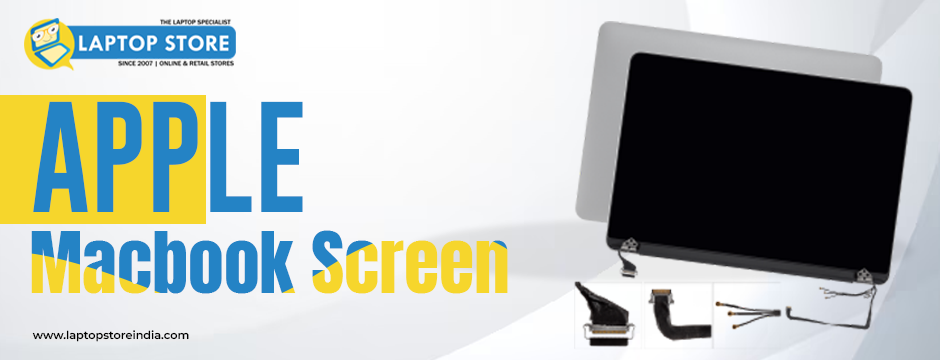
Apple MacBook screens are known for their high-resolution Retina displays, crisp colors, and seamless performance. However, like any other electronic device, MacBook screens can encounter flickering, cracks, or unresponsiveness issues. If you are experiencing any of these issues, don’t worry!
At Laptop Store India, we understand how frustrating screen issues can be. With over 10 lakh satisfied customers, we pride ourselves on providing high-quality laptops, excellent customer service, and professional after-sales support. Read on to learn how to diagnose and fix common Apple MacBook screen issues.
Common Apple MacBook Screen Problems and DIY Fixes
1. MacBook Screen Flickering
Screen flickering is a common issue that can be caused by software glitches, hardware malfunctions, or incorrect display settings.
Potential Causes:
Software bugs or outdated macOS
Incorrect display settings
Loose display cable
Overheating
DIY Fixes:
(a) Restart Your MacBook
A simple restart can resolve temporary glitches. Click on Apple Menu > Restart and check if the flickering stops.
(b) Update macOS
Ensure your MacBook is running the latest macOS version. Go to System Settings > General > Software Update and install any available updates.
(c) Disable Automatic Graphics Switching
This feature can sometimes cause screen flickering. To disable it:
Go to System Settings > Battery
Click on Options and turn off Automatic Graphics Switching
(d) Reset PRAM and SMC
If the flickering persists, resetting the PRAM (Parameter RAM) and SMC (System Management Controller) may help:
Reset PRAM: Shut down your MacBook and turn it on while holding Command + Option + P + R for 20 seconds.
Reset SMC: Shut down your MacBook, then press Shift + Control + Option + Power simultaneously for 10 seconds before releasing.
If the problem continues, it could be a hardware issue, and you should visit a trusted service center like Laptop Store India.
2. Cracked MacBook Screen
A cracked screen is one of the most frustrating issues, especially if it affects display performance.
Potential Causes:
Accidental drops or impact
Pressure on the screen (such as closing the lid with an object inside)
Manufacturing defects (rare cases)
DIY Fixes:
Unfortunately, there are no DIY solutions to fix a physically cracked Apple MacBook screen. However, you can take the following steps:
(a) Assess the Damage
Check whether the crack is superficial (only affecting the glass) or deeper (affecting the display and causing dead pixels or discoloration).
(b) Use a Screen Protector
If the crack is minor and does not affect visibility, applying a screen protector may prevent further damage.
(c) External Display as a Temporary Fix
If your screen is severely damaged, connecting your MacBook to an external monitor using an HDMI or USB-C adapter can allow you to continue working.
(d) Professional Screen Replacement
For a permanent solution, visit an Apple-authorized repair center or a trusted service provider like Laptop Store India, where our certified professionals can replace your screen with genuine parts.
3. MacBook Screen Blackout (No Display)
If your MacBook turns on but the screen remains black, it could be due to software issues or hardware malfunctions.
Potential Causes:
macOS glitches
Loose display cable
Hardware failure
Brightness settings
DIY Fixes:
(a) Adjust Brightness
Press F2 (or use the Touch Bar slider) to increase brightness.
(b) Force Restart
Hold the Power button for 10 seconds until the device shuts down, then turn it back on.
(c) Boot in Safe Mode
Safe Mode helps diagnose software-related issues:
Turn off your MacBook.
Turn it on while holding Shift until the Apple logo appears.
If the screen works in Safe Mode, uninstall any recently installed apps that may be causing the issue.
(d) Check External Display
Connect your MacBook to an external monitor. If the external display works, the issue may be with your MacBook’s screen or cable.
If none of these solutions work, visit Laptop Store India for a professional diagnosis.
4. Dead Pixels or Discoloration
Dead pixels appear as tiny, unresponsive dots on the screen, while discoloration can cause abnormal hues.
Potential Causes:
Manufacturing defects
Pressure damage
Software issues
DIY Fixes:
(a) Try Pixel Fixing Apps
Apps like JScreenFix can sometimes revive stuck pixels by rapidly cycling colors.
(b) Gently Massage the Affected Area
Using a soft microfiber cloth, gently press the dead pixel area. Be careful not to apply too much pressure.
(c) Update macOS and Reset PRAM
Ensure your MacBook is running the latest updates and reset PRAM as described earlier.
If dead pixels persist, your best option is to get a screen replacement from a trusted provider like Laptop Store India.
5. MacBook Screen Ghosting or Image Retention
Ghosting occurs when previous images linger on the screen, even after switching windows.
Potential Causes:
Extended screen-on time
High brightness settings
DIY Fixes:
(a) Enable Screen Saver
Set a screensaver to activate after a few minutes of inactivity.
(b) Reduce Brightness
Lower the screen brightness to minimize image retention.
(c) Use Pixel-Refreshing Tools
Some third-party tools cycle colors rapidly to remove ghosting effects.
If the issue remains, Laptop Store India can diagnose and repair persistent ghosting problems.
Conclusion
MacBook screen issues can range from minor flickering to severe cracks. While some problems can be fixed with simple troubleshooting, others require professional repair services. If your Apple MacBook screen needs expert attention, Laptop Store India is your go-to solution for high-quality service and genuine repairs.
Visit Laptop Store India today and get your screen issues resolved by experts!